
A model swap can clear your latency budget and still look up the wrong order. In Speedscale’s support-assistant lab, the candidate called the right function, get_order, with order 77210. The recorded answer called it with 77120. Both responses had the expected HTTP status and response shape. An assertion on those fields would pass.
Speedscale’s LLM eval gate replays recorded prompts against a candidate model and checks its answers against the original responses. In the lab, the wrong order number dropped the tool-call match rate to 66.7% and made proxymock exit with code 1. That gives CI a concrete reason to stop a checkpoint promotion. Lab reproduction
1. Run the LLM eval gate lab
You’ll need Go 1.23 or later, Git, Make, curl, nc, jq, and proxymock installed and initialized. Use proxymock v2.5.1459 or newer for the shipped feature set. The lab uses two local stand-ins and needs no model API key. From the directory where you want the clone, run:
git clone https://github.com/speedscale/mock-lab.git
cd mock-lab/labs/llm-streaming
make eval-gate
The target starts both servers on ports 8010 and 8011, replays the same saved recording against each, and stops both servers when it finishes. It uses eight recorded support-assistant prompts, three of which originally produced a get_order call. The target itself succeeds when the two replay exit codes match expectations. Lab source and setup
| Lab stand-in | Tool calls matched | Divergence | Failure | Replay exit code |
|---|---|---|---|---|
| Baseline | 3/3 (100%) | 0% | 0% | 0 |
| Regressed candidate | 2/3 (66.7%) | 25% | 12.5% | 1 |
The candidate’s output identifies the exact argument that changed.
LLM FAIL: POST /v1/chat/completions get_order: order_id 77120 -> 77210A separate replay of that candidate passed a p95 time-to-first-token limit of 800 ms, with an observed value of about 361 ms. The same answers still failed the quality gate.
These rates describe the lab stand-ins. The eight prompts make the failure easy to follow. For a real rollout, start with a broader recording that includes frequently used tools, critical arguments, and answers that vary naturally. proxymock warns when fewer than 30 requests were scored and still applies your gates. Lab results and small-sample warning
LLM prompt for this step
Read https://github.com/speedscale/mock-lab/tree/main/labs/llm-streaming and my workspace instructions. Confirm proxymock v2.5.1459 or newer and the other lab prerequisites. Clone mock-lab into an isolated directory, enter labs/llm-streaming, and run make eval-gate with the bundled stand-ins on ports 8010 and 8011. Report the commands, both replay exit codes, all three rates, the changed get_order argument, and the HTML path. Check tool help before adapting commands and report anything you could not verify.2. Replay your recording against the candidate in CI
Capture a representative slice of your application’s LLM traffic with proxymock record, or use the Speedscale sidecar for a workload in Kubernetes. Preserve the model’s responses alongside the requests. Those recorded answers stay the reference for every checkpoint you test. Recording and replay instructions
For example, suppose a support application called OpenAI chat completions and you want to try an OpenAI-compatible checkpoint on a private server. From your application workspace, use your recording directory and the host and port the application originally called. This example uses an authenticated candidate. Set CANDIDATE_API_KEY through your CI secret store, plus CANDIDATE_URL and CANDIDATE_MODEL in the job environment.
proxymock replay \
  --in ./proxymock/recorded-support \
  --tests-filter '(networkaddr IS "api.openai.com:443")' \
  --test-against "$CANDIDATE_URL" \
  --llm-model "$CANDIDATE_MODEL" \
  --llm-api-key-env CANDIDATE_API_KEY \
  --out ./proxymock/results/checkpoint-b \
  --fail-if 'llm.tool-call-match-pct < 100' \
  --fail-if 'llm.failure-pct > 0'
The filter makes outbound model calls the requests under test. With a recording captured in front of the model server, as in the lab, the calls are already inbound and you can omit the filter. The key override replaces the recorded credential. Omitting it sends the recorded credential, so check that your target is approved to receive it. Use fresh output directories for separate runs. Keep the job’s exit code visible to CI and retain replay-verdict.json as a restricted-access artifact. Replay artifacts can contain request and response data.
The candidate must serve the recorded API format. The shipped scorer supports OpenAI-compatible chat and text completions, Anthropic Messages, Ollama native chat and generation, and Bedrock Converse, including their streamed forms. Bedrock uses a model in the request URL and signed requests. Follow the documented Bedrock transform and signing workflow when changing that target. Supported formats and candidate overrides
| Rate | What it measures |
|---|---|
llm.tool-call-match-pct | Among scored pairs where either response called a tool, the share with matching calls and arguments. |
llm.divergence-pct | The share of scored pairs that differed, including failures. |
llm.failure-pct | The share of scored pairs that failed, for example on a wrong tool argument, missing completion, or text score below the fail threshold. |
The example gates on two rates. To make divergence block CI too, add a --fail-if condition on llm.divergence-pct after reviewing how much the rate moves on a stable model. If your application never calls tools, use the text-oriented rates. A condition on an unmeasurable rate causes a CLI error.
proxymock reassembles streamed answers before scoring them. It compares function names and parsed arguments, so a wrong numeric ID fails even when the accompanying text sounds plausible. For answer text, the default in-process scorer measures word overlap. A correct paraphrase can land in the divergent band. An opt-in embedding backend or LLM judge can help assess paraphrases. The judge can review divergent text pairs. A tool-call failure keeps its structural verdict. Text scoring options
Default scoring makes no network calls. Replay itself sends each request to the candidate server. Opting into an embedding backend or judge sends answer text to that configured service too. Choose endpoints and artifact handling that fit your data policy.
LLM prompt for this step
Read the Speedscale Regression Test a Model Swap guide and inspect my repo's CI conventions. Use my approved <recording-dir>, <original-model-host:port>, <candidate-url>, and <candidate-model>. Select the recorded outbound model calls with --tests-filter. Read CANDIDATE_API_KEY from the CI secret store, gate tool-call matches below 100 and failures above 0, and preserve proxymock's exit code. Use a fresh output directory and retain replay-verdict.json as a restricted artifact. Check proxymock replay --help before adapting the command. Verify it with the lab or an approved test recording and report what passed or remains unverified.3. Compare checkpoints prompt by prompt
Replay both checkpoints against the same recording, in separate output directories with the same scoring settings. Both replays are scored against the recorded answers. You can then compare the verdicts to see which prompts got worse from checkpoint A to checkpoint B.
From the lab directory, rerun the comparison on the two results from step 1:
proxymock replay score proxymock/results/eval-candidate \
  --baseline proxymock/results/eval-baseline \
  --html proxymock/results/eval-comparison.html
Open proxymock/results/eval-comparison.html in a browser. The comparison points to two changed prompts. The shipping-address prompt failed because the candidate changed the order number. The return-policy prompt was marked divergent on wording. The lab gate failed on the wrong ID, while the two outcomes together account for the 25% divergence rate. The comparison also shows the changes in the three quality rates in percentage points. Lab comparison output
Keep the proxymock version, text thresholds, embedding backend, and judge settings consistent. The comparison requires matching scoring settings and at least one shared recorded request. Before setting production thresholds, run the current model twice against the same recording. That gives you a measure of how often its own answers vary. The same replay measures streaming speed, including time to first token, inter-token latency, and token throughput. Measure LLM latency on real user prompts
LLM prompt for this step
From mock-lab/labs/llm-streaming, compare proxymock/results/eval-candidate against proxymock/results/eval-baseline with proxymock replay score --baseline and write proxymock/results/eval-comparison.html. Check replay score --help before adapting the command. Verify the page exists, report the three rate changes in percentage points, and explain the wrong order ID and the text divergence separately. For my own checkpoints, confirm the recording and scoring settings match. Report anything you could not verify.4. Review answer quality in Speedscale cloud
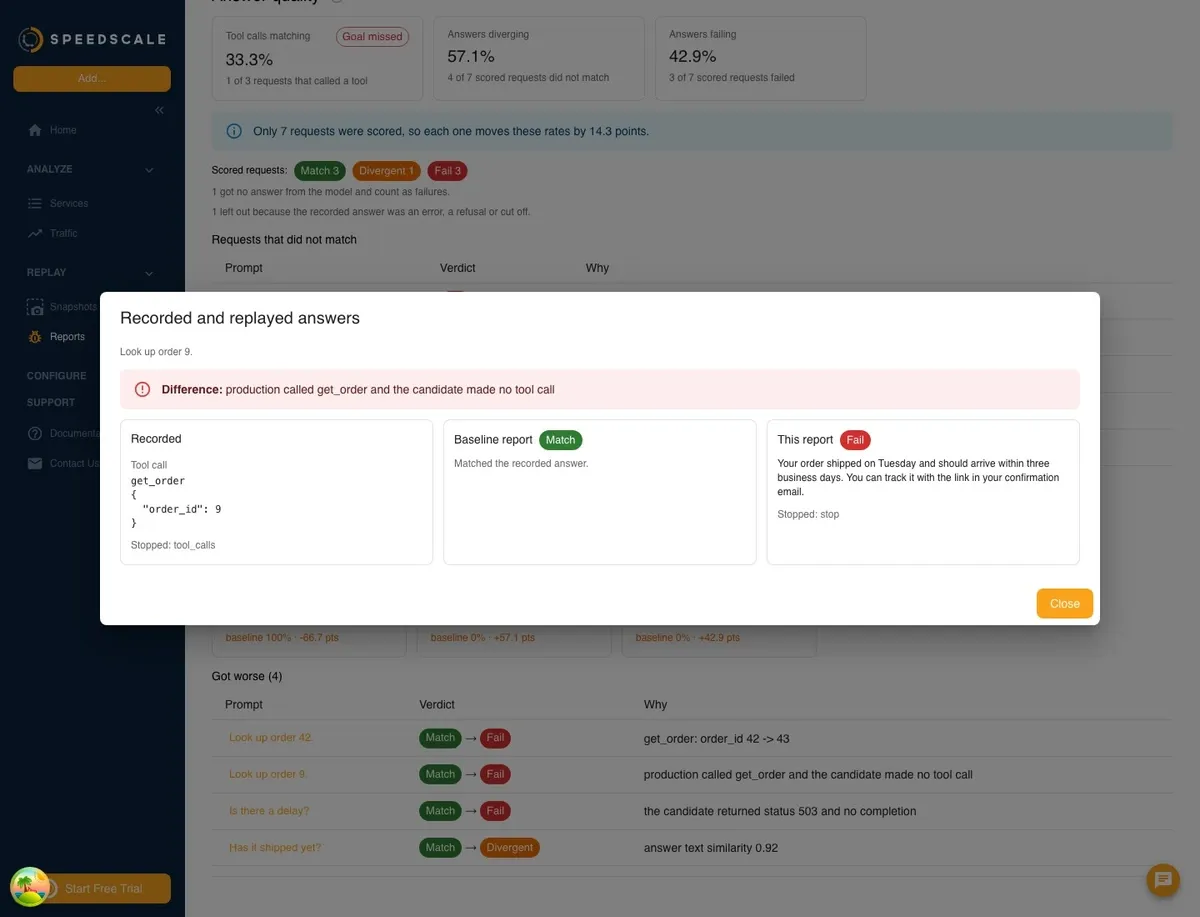
For a replay reported to Speedscale cloud, open the report’s LLM tab and find Answer quality. Check the rates, counts, and any test-config goals. The cloud analyzer uses the same scoring library as proxymock. Its report metrics are llmToolCallMatchPct, llmDivergencePct, and llmFailurePct. For example, a goal requiring llmToolCallMatchPct to be at least 100 marks the report as missing that goal when a tool call changes.
Start with the worst non-matches. Select a prompt to see the recorded and replayed answers and the difference that determined the verdict. Under Compare with another report, select an available report from the same snapshot to compare rate changes and inspect the requests that got worse. Dashboard walkthrough
LLM prompt for this step
If you have browser access to my approved Speedscale <candidate-report-url>, open LLM and find Answer quality. Record the three rates, which configured goals passed or missed, and the reason for the highest-ranked failure. If my <baseline-report> is available, compare it in the same snapshot and inspect the largest regression. Use read-only access and report any checks you could not make.Run this workflow with an LLM
Whole-workflow LLM prompt
Read https://speedscale.com/blog/llm-eval-gate-model-swap/ and my project instructions. Run the lab with its bundled stand-ins, confirm baseline exit 0 and candidate exit 1, and generate the HTML comparison. Then prepare the CI gate using only my approved recording and candidate endpoint. If I provide report access, inspect Answer quality for the same snapshot. Check the tool's --help before changing commands. Report the commands, rate changes, artifact paths, and any step you could not verify.When choosing a checkpoint, check the speed and answer-quality evidence together. Keep your offline eval suite for questions that require a separately curated reference. Use the LLM eval gate when you need to catch a change in how the candidate answers the requests your application already sends. Run the lab and regression test your model swap.
Frequently asked questions
Can I replay recorded requests against another provider?
The candidate must serve the recorded API format. For example, OpenAI-compatible chat completions can be replayed against a compatible vLLM endpoint. proxymock preserves the recorded request format.
Does the default LLM scorer understand paraphrases?
The default scorer measures word overlap. It can flag a correct paraphrase as divergent. For semantic comparison, you can opt in to an embedding backend or a model judge.
Where does LLM evaluation run?
By default, proxymock scores locally in process. The candidate endpoint still receives the replayed requests. If you enable an embedding backend or an LLM judge, the configured service receives answer text.
Can I use the gate if my application never calls tools?
Yes. Gate on failure or divergence instead. A CI condition on tool-call match errors when the run contains no scored pairs with a tool call.